
How to add games to the Pandora Box

How to add games to Pandora Box
There are many versions of Pandora's Box, from those corresponding to the original manufacturer 3A Games, which stopped at Pandora's Box 6, to the evolved superior versions such as Pandora Box 7 3D, also known as 3D Moonlight Treasure Box 7 or Pandora 7 Key, or in the very latest models simply Pandora 7 Saga 3D.
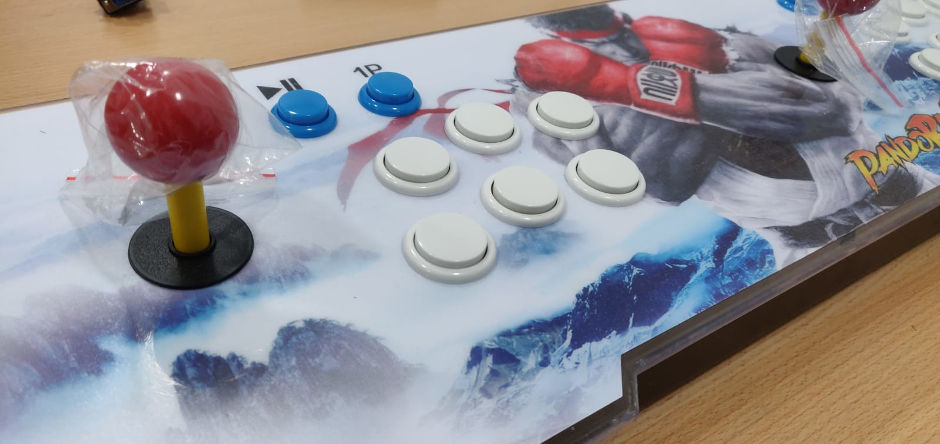
All these Pandora consoles differ mainly in their motherboard, which determines whether or not it is possible to easily add games, and how to do so.
Amlogic S812 motherboards and similar
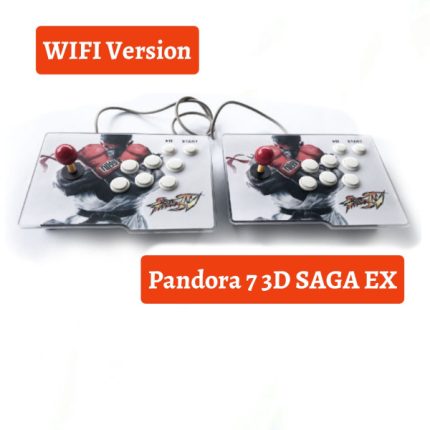
The newest Pandora 7 3D SAGA and Pandora 7 3D SAGA EX models are based on the Amlogic S812 motherboard. These newer models are distinguished by their user interface, which now offers more menu options such as categories (by game type or emulator) and a much-needed game search function. They also come with more languages, including Spanish, and finally a way to save game progress in 2D games (save state).
You can buy the product here:
24h delivery Spain🚀
72h Delivery to Europe🚀
The way to add games is somewhat complex but very powerful and much more functional than in previous models.
This S812 motherboard, despite being a bit old, offers the best performance in the Pandora Box because its GPU is made up of 8 cores, which in 3D games results in unmatched performance by other more modern motherboards.
On the other hand, it's important to note that these motherboards have an integrated 4GB eMMC where the operating system (Android) runs, while games are stored on a 32GB or 64Gb SD card in the motherboard's internal SD slot. This separation between the OS and games is very convenient.
Required materials: USB flash drive formatted as FAT32 or exFAT
Step 1 – Create the “games” directory in the root of the USB drive
Step 2 – Create the “download” subdirectory inside “games”
Step 3 – Create the “mcgames” directory in the root of the USB drive
1. Add 3D Games
To add 3D games, create a directory inside games/download with the name of your game and copy your ROM into it with the same name as the directory.
The types of ROMs supported are detailed in the attached document.“Install2DGamesXML”"for each emulator.".
2. Install 2D or 3D Games
Adding games is not the same as installing them. Separating the operating system and games onto different drives allows us to "install" games onto the USB drive relatively easily. In this case, "installing" means creating a database of the games, ROMs, and videos directly on the USB drive.
2D games can only be installed, while 3D games can be installed or just added.
Therefore, for 2D games, it's necessary to "install" the game using an XML file. Inside the "mcgames" directory, create a directory with the name of the 2D game and copy your ROM (usually in ZIP format) and an MP4 video file into it, using the same names as the directory. Also create an XML file with the same name and the following content:
<?xml version=”1.0″ encoding=”UTF-8″?><game name=”nombre_rom” emulator=”3″>
<information>
<description>Mi Juego</description>
<cloneof>null</cloneof>
<language>EN</language>
<year>0</year>
<manufacturer>null</manufacturer>
<player>0</player>
<genre>3</genre>
<width>0</width>
<height>0</height>
<bootleg>0</bootleg>
</information>
<file>
<rom name=”nombre_rom.zip”/>
</file>
<translation>
<string language=”EN”>
<name>My Game</name>
<detail>null</detail>
</string>
<string language=”ES”>
<name>Mi Juego</name>
<detail>null</detail>
</string>
</translation>
<config>
<flag>0</flag>
<load_time>17000</load_time>
<free_play>true</free_play>
<save_state>false</save_state>
<start_directly>true</start_directly>
</config>
</game>
where you need to replace game_name with the name of your ROM.
Also, in the “mcgames” directory, create an install.txt file containing, line by line, the names of the 2D roms that you want to install.
The different parameters of the XML file are explained in the attached document.“Install2DGamesXML.pdf”which you can download Here . This document was published by a certain "querol" from the community, and new ways of "playing" with Pandora are being developed around it.
Before connecting the USB cable, you need to set the Pandora device to English. To do this, press the physical "CFG" button on the back of the Pandora device. This will open the settings menu, where you can change the language to English and several other languages.
Finally, with Pandora booted in the default interface, connect the USB memory stick to the USB port lower and an Android installer will pop up and install the 2D ROMs listed in the install.txt file. .
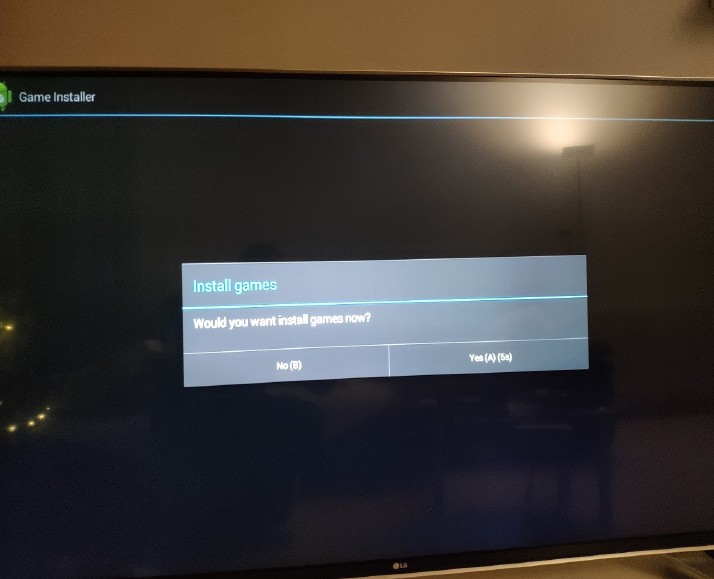
Pandora Box 3D “Game Installer” APK for Android at kiboTEK Spain
Once installed (copied to games/data) you can delete the directories inside “mcdownloads” and empty the install.txt file so that the installer does not pop up again when the USB is inserted.
To return to the Pandora's default game list, you need to turn off the Pandora, remove the USB drive, and turn it back on. If your game list isn't loading correctly, it's because the USB drive wasn't properly ejected. To fix this, turn off the Pandora using the power switch on the back, unplug the power adapter for a few seconds, and then turn it back on.
The 2D ROMs for Mame must correspond to the SETs or versions supported by Pandaro, that is, mame37, mame139, mame78 and mame19, as can be seen in the table of the attached document.“Install2DGamesXML.pdf”.
Finally, it is also possible to "install" 3D games exactly the same as 2D games, in case you want more control over the game features that will appear in the Pandora menu (type, video, etc.).
As a demonstration and reference, you can download HERE an example generated by a user on the Internet.
You can also download HERE Here's an example of files to extract directly to the root of the USB drive for reference. In this case, you'll need to add the ROMs yourself to the corresponding directories.
For 2D ROMs, we insist that they must be from supported MAME SETs. For example: https://wowroms.com/en/roms/list/mame+0.139u1 .
For PSX ROMs, the supported format should be IMG (usually with CCD and SUB). However, it's common to find ROMs in PBP format, but there is software called PSX2PBP that allows you to perform the opposite action of converting PBP to IMG.
As you know, not all games will work; it's a matter of trial and error, although a large majority will. If a PSX game loads fine but crashes when the action starts, it's most likely due to the vibration function, which isn't supported on these Pandora consoles. To fix this, simply go into the game's options and disable vibration (or rumble).
On the Internet you can find pre-created installation packages from other users, which you can use as examples, but there is also a project “PandoryTool”"This allows you to automatically create packages simply by copying the USB drive. You can then see how it creates the XML files and use them as examples.".
Amlogic S912 motherboards and similar
In the case of previous Pandora 7 3D models, the motherboard was an Amlogic S912 and adding games was relatively simple.
Required Materials: USB flash drive in FAT32 (also via an SD card but this involves opening Pandora's box, thus voiding the warranty) connected to the USB port superior Pandora's.
a) For 3D Games: ROMs are required in the following formats: PSP (iso), Dreamcast (cdi), Nintendo 64 (n64) and PS1 (pbp).
Step 1 – In the root directory of the USB drive, create a directory called “roms”
Step 2 – Inside “roms” create a subdirectory with the name of the game
Step 3 – Copy the game ROM into the subdirectory
Step 4 – (optional) Add an image in JPG format to be displayed in the Pandora menu
b) For 2D games: Only Mame 0.139u1 and FinalburnAlpha roms in ZIP format are supported.
Step 1 – In the root directory of the USB drive, create a directory “2d” and inside it a subdirectory “roms”
Step 2 – Add the ROMs in zip format inside “2d/roms”
Step 3 – If the game is compatible, it should automatically appear in the list.
Alwinner H3 plates and similar
These are the Pandora Box 6 from 3A Games, or clones. In this case, adding new games is simple, but it only supports FBA/MAME/PS1 emulators.
You need to create the folders “roms_fba”, “roms_mame” and “roms_playstation” in the root of the USB drive, and copy your ROMs directly to the corresponding directory.
———-
If you don't already have your Pandora Box 3D SAGA Ex, you can buy it here:
24h delivery Spain🚀
72h Delivery to Europe🚀