
📢 kiboNEWS blog
How to connect the Pandora 7 3D to the PC as a joystick

How to connect the Pandora Box 3D to your PC as a joystick
This time we're talking about a "secondary" but really interesting feature of the Pandora Box: using the Pandora Box 3D like a joystick connected to the PC.
24h delivery Spain🚀
72h Delivery to Europe🚀

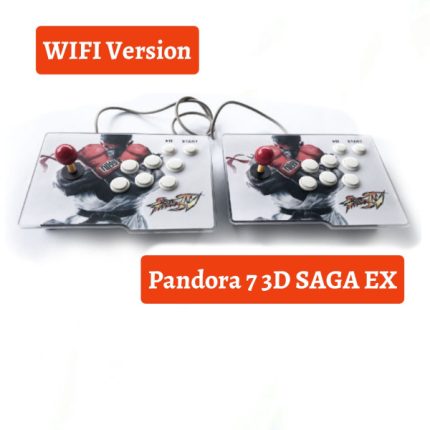
Let's say that Pandora Boxes are actually made up of 2 products in 1; on one hand the motherboard where the Pandora Box software is installed (Android with emulators and ROMs) and on the other hand the controller or joystick hardware itself.
This joystick is internally connected to the Pandora motherboard, but it can also be independently connected to another device such as a PC, or even a PS3.
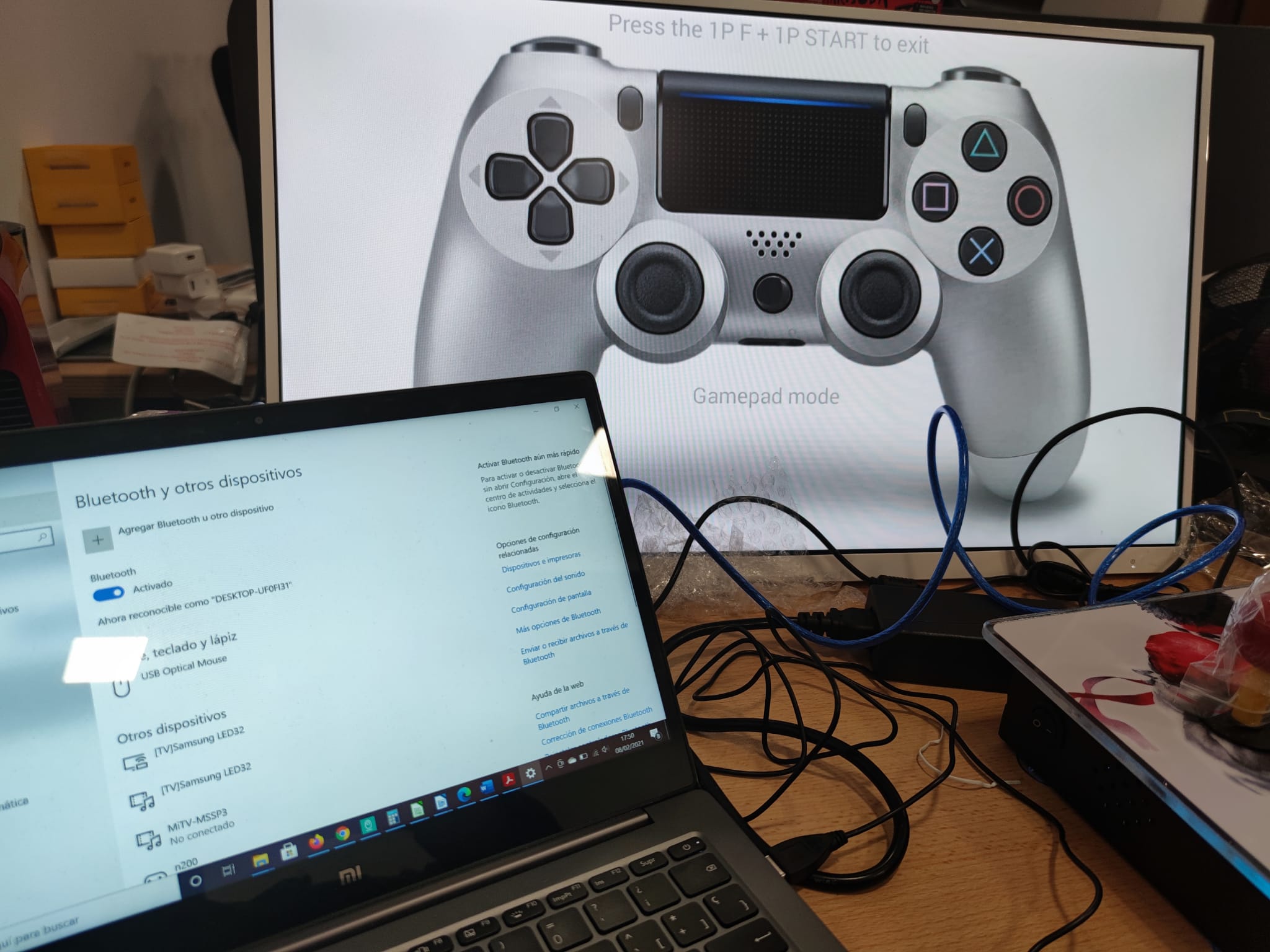
It's as simple as, with Pandora turned off, Connect the Pandora's top USB port to your PC using the supplied blue USB cable. Your PC will recognize the new joystick, and you'll see the "gamepad" in the controller list and can access the test interface. However, if you're using a Windows 10 PC, no further action is required.
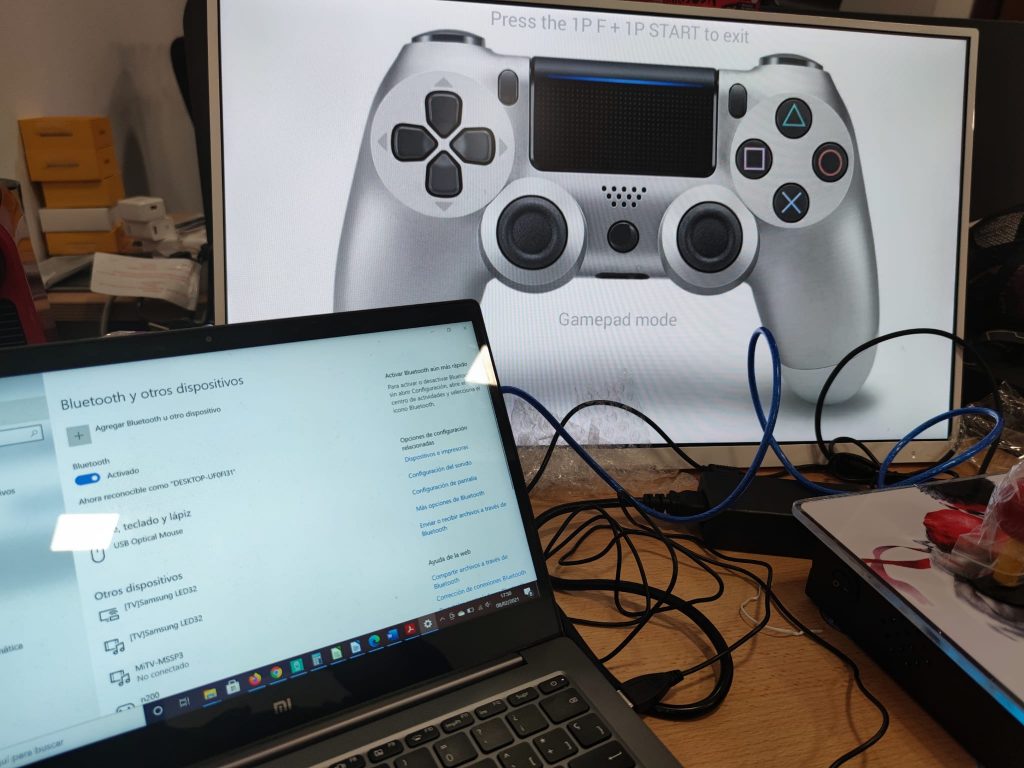
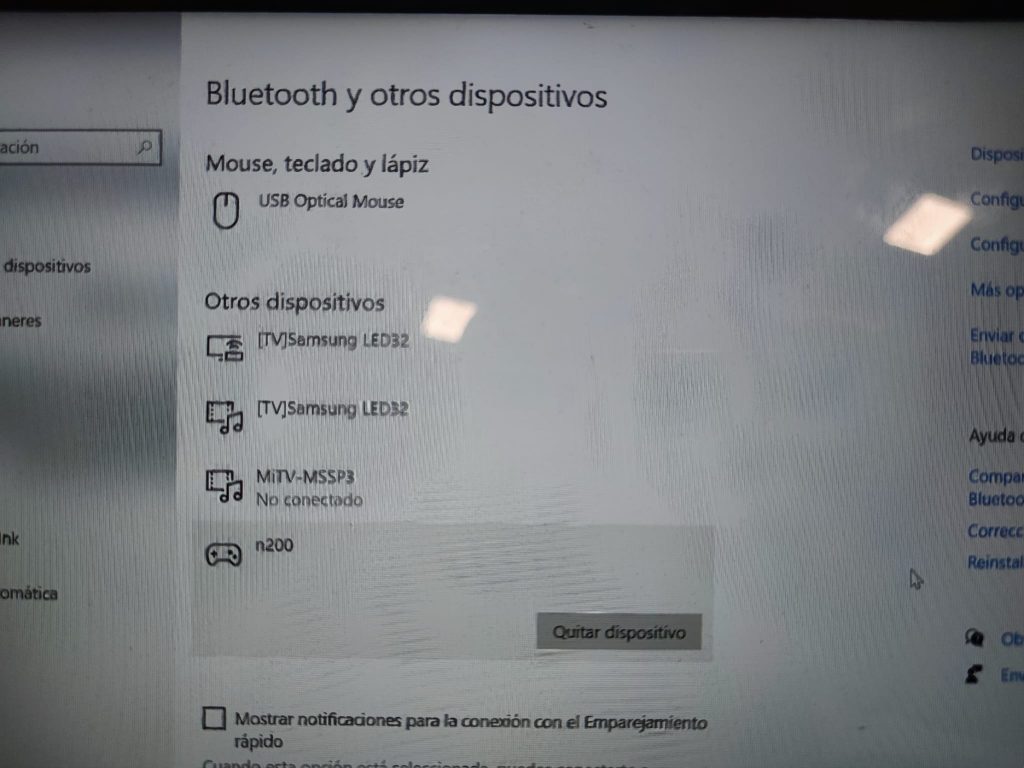
To perform a full demo, for example, we download the Steam software from https://steamcdn-a.akamaihd.net/client/installer/SteamSetup.exe, install it, start it, and create an account.
Once inside the Steam client, click the search icon (magnifying glass) to bring up the advanced search with all the filters. We're going to install a free-to-play game with full gamepad support.
In “Filter by tag” type “Free…” until the “Free to Play” tag appears and select it. Then, in “Filter by Feature” select “Full controller compatibility”. .
Then we install one of the games, for example "Unsung Warriors - Prologue", and with the Pandora already connected to the PC, we click Play and start enjoying a new way of using our Pandora Box.
And as an example, a short video:
One more reason to get a Pandora Box 7 3D SAGA Ex:
24h delivery Spain🚀
72h Delivery to Europe🚀